
Do it once.
Send the guide.
Click through a task in Chrome. Showsteps turns every click into a numbered step with a marked-up screenshot, blurs passwords and card numbers, and hands you a guide you can send in a minute. The same recording becomes a skill your agent can replay.
Chrome Web Store listing coming soon.
- Stays on your computer
- PDF, Word, Markdown
- No account

Record, review, send
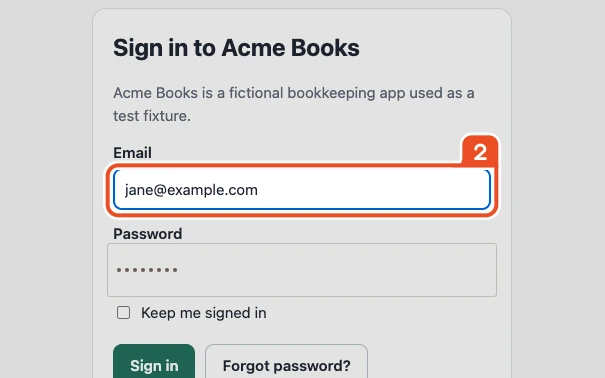
Record
Press Record and do the task the way you normally would, across as many tabs as it takes. Pause whenever you need to.
Review
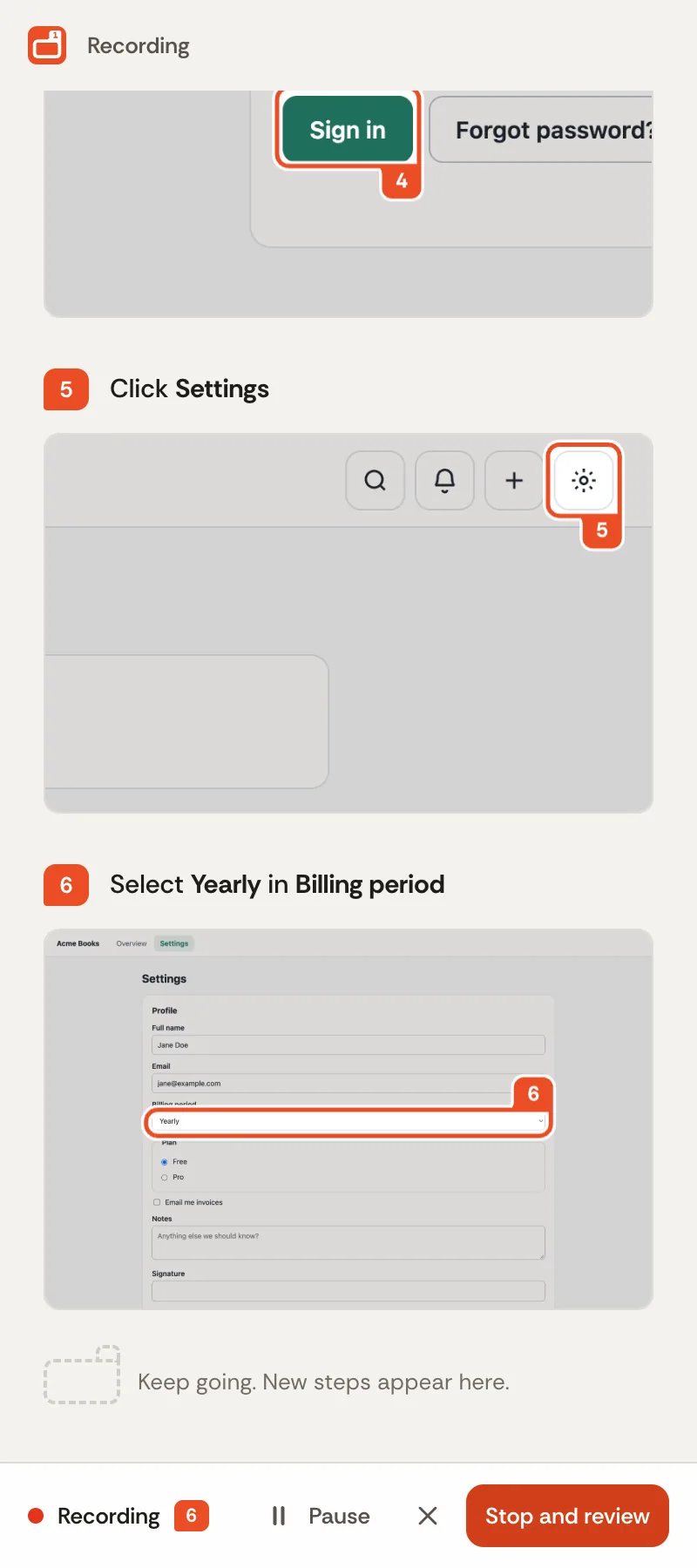
Every step has a screenshot and a plain title such as Click Save. Rewrite a title, merge or delete steps, add a note, draw a blur.
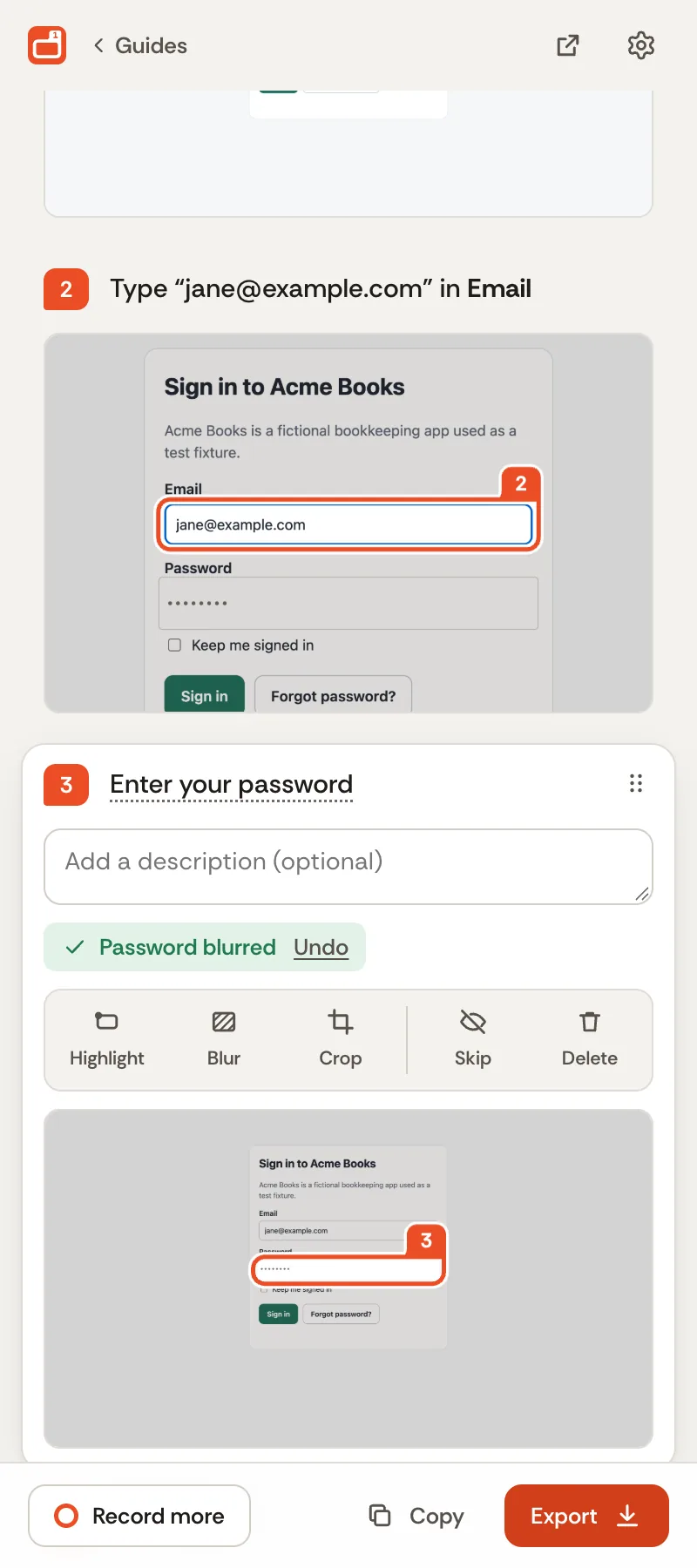
Send
Send a PDF, a single HTML file, Markdown or a DOCX. Or export the agent skill and let something else do the clicking.
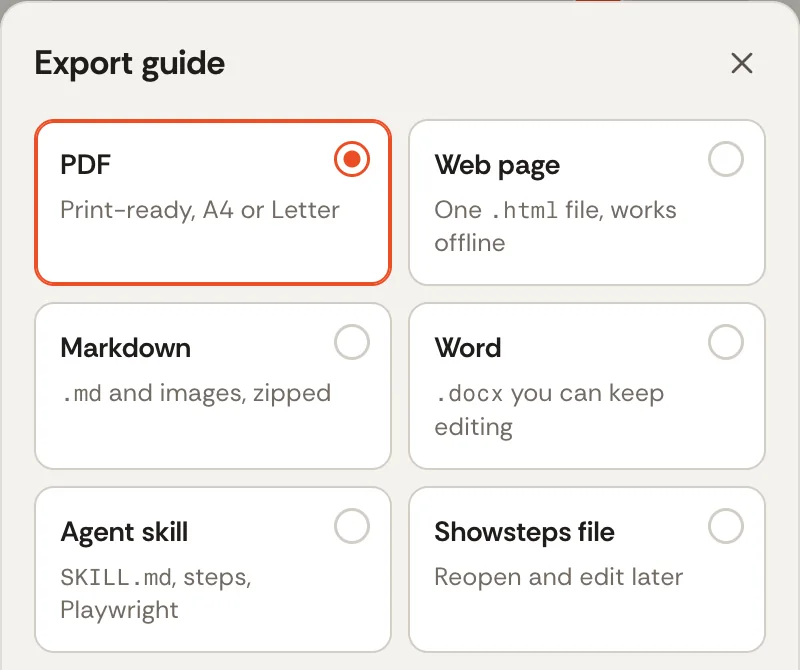


PDFHTMLMarkdownDOCXSKILL.md.showsteps
See an example guide, exported by Showsteps from a recording of a mock app.
Your screenshots stay on your computer
Guides about internal tools contain customer names, account numbers and URLs. Showsteps has no server to send them to. Read the details.
- No upload. Screenshots and text live in your browser until you export a file.
- No account. No sign-up, no email address, no login.
- No analytics. None in the extension, none on this site.
- Passwords are not recorded. Password and card fields are detected, their values are never saved, and they are masked before the screenshot is stored.
- No network after install. The extension does not phone home.
- Readable source. MIT licensed, and the file format is documented.
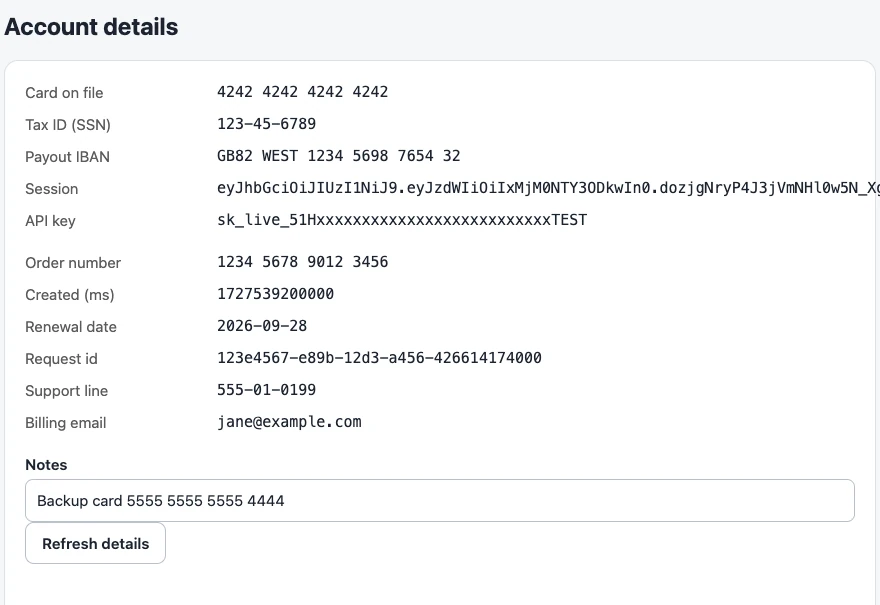 Before: what the page showed
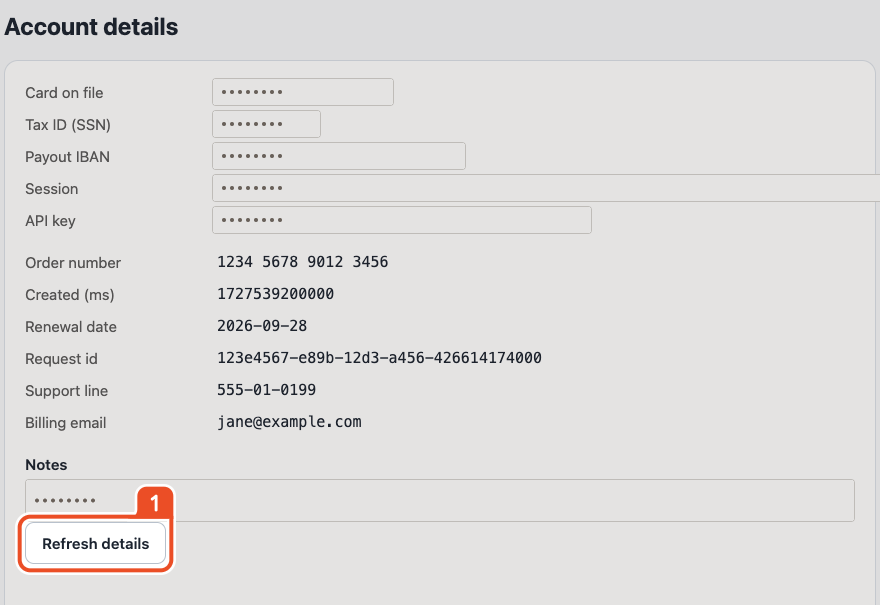 After: what the guide keeps
One recording, two audiences
You get a guide. Your coding agent gets a skill: numbered steps in SKILL.md, a machine-readablesteps.json and a Playwright replay.spec.ts that prefers role, label and test-id locators. Agents can also drive Showsteps from the command line or a local MCP server.
---
name: "invite-a-teammate"
description: "Replay or walk through the \"Invite a teammate\" workflow recorded in a browser (6 steps, starting at app.acme.test). Use when the user wants to do this task, check that it still works, or run it with Playwright."
---

# Invite a teammate

Invite a teammate to the Acme workspace with the Editor role.

Recorded with Showsteps on 28 September 2026: 6 steps across 1 tab, starting at https://app.acme.test/settings.

## How to use this skill

- **Replay it:** run `npx playwright test replay.spec.ts` in this folder (needs `@playwright/test` and a browser: `npx playwright install chromium`). The test opens its own tab, and follows tabs the recording opened.
- **Do it by hand or with a browser tool:** follow the steps below in order. `steps.json` lists the same steps with every recorded locator, best first, for tools that drive a browser directly.
- **If a step fails:** the page probably changed. Re-locate the element from its name and role instead of the CSS selector, and update `replay.spec.ts`.
Show the whole file (36 lines)
---
name: "invite-a-teammate"
description: "Replay or walk through the \"Invite a teammate\" workflow recorded in a browser (6 steps, starting at app.acme.test). Use when the user wants to do this task, check that it still works, or run it with Playwright."
---

# Invite a teammate

Invite a teammate to the Acme workspace with the Editor role.

Recorded with Showsteps on 28 September 2026: 6 steps across 1 tab, starting at https://app.acme.test/settings.

## How to use this skill

- **Replay it:** run `npx playwright test replay.spec.ts` in this folder (needs `@playwright/test` and a browser: `npx playwright install chromium`). The test opens its own tab, and follows tabs the recording opened.
- **Do it by hand or with a browser tool:** follow the steps below in order. `steps.json` lists the same steps with every recorded locator, best first, for tools that drive a browser directly.
- **If a step fails:** the page probably changed. Re-locate the element from its name and role instead of the CSS selector, and update `replay.spec.ts`.

## Steps

1. Go to **Settings** on Acme
   - URL: https://app.acme.test/settings
2. Click **Team**
   - Find it by: role "link" named "Team"
3. Click **Invite member**
   - Find it by: role "button" named "Invite member"
4. Type "jane@example.com" in **Email**
   - Find it by: label "Email"
5. Select **Editor** in **Role**
   - Find it by: label "Role"
6. Click **Send invite**
   - Find it by: role "button" named "Send invite"

## Files

- `replay.spec.ts`: Playwright test for the whole flow.
- `steps.json`: machine-readable steps (format `showsteps-steps`, version 1).// Generated by Showsteps (https://showsteps.vercel.app) from the guide "Invite a teammate", 6 steps.
// Run it with: npx playwright test replay.spec.ts
import { expect, test } from "@playwright/test";
test("Invite a teammate", async ({ context }) => {
const page = await context.newPage();
await test.step("1. Go to Settings on Acme", async () => {
await page.goto("https://app.acme.test/settings");
await expect(page).toHaveURL(/^https:\/\/app\.acme\.test\/settings\/?(?:[?#].*)?$/);
});
await test.step("2. Click Team", async () => {
await page.getByRole("link", { name: "Team" }).click();
});
Show the whole file (32 lines)
// Generated by Showsteps (https://showsteps.vercel.app) from the guide "Invite a teammate", 6 steps.
// Run it with: npx playwright test replay.spec.ts
import { expect, test } from "@playwright/test";

test("Invite a teammate", async ({ context }) => {
  const page = await context.newPage();

  await test.step("1. Go to Settings on Acme", async () => {
    await page.goto("https://app.acme.test/settings");
    await expect(page).toHaveURL(/^https:\/\/app\.acme\.test\/settings\/?(?:[?#].*)?$/);
  });

  await test.step("2. Click Team", async () => {
    await page.getByRole("link", { name: "Team" }).click();
  });
await test.step("3. Click Invite member", async () => {
await page.getByRole("button", { name: "Invite member" }).click();
});
await test.step('4. Type "jane@example.com" in Email', async () => {
await page.getByLabel("Email").fill("jane@example.com");
});
await test.step("5. Select Editor in Role", async () => {
await page.getByLabel("Role").selectOption({ label: "Editor" });
});
await test.step("6. Click Send invite", async () => {
await page.getByRole("button", { name: "Send invite" }).click();
});
});CLI and MCP usage for agents · Convert clicks to a Playwright test · Record a workflow as an agent skill
Showsteps, Mimik, Scribe and Tango
Scribe and Tango do things we do not: desktop capture, hosted links, team workspaces. Mimik is a free, local option that also exports video and GIF. If you need those, use them. If you want a guide you own, plus a script an agent can run, here is the difference.
| Feature | Showsteps | Mimik | Scribe | Tango |
|---|---|---|---|---|
| Where your guides live | In your browser and in files you save. No network requests after install. | On your device. Its README notes site icons come from Google's favicon service, and optional AI features call the provider you set up. | Scribe's servers. Its docs describe blurring before capture so blurred data never reaches them. | Tango's cloud, hosted on AWS. No on-premises option. |
| PDF, HTML and Markdown export | Free. Also DOCX. | Free. Also DOCX, MP4 and GIF. | Not on the free Basic plan. Included in Pro. | Not on the free plan. Included in Pro. |
| Blur or redact screenshots | Free. Password fields and card numbers, tax IDs, IBANs and keys on the page are masked as you record; draw your own blur or crop. | Free. Smart Blur for emails, phone numbers, SSNs, cards, IP and MAC addresses, plus a manual picker. | Not on Basic. Editing and redacting screenshots is a Pro feature. | Not on the free plan. Annotation and blurring are in Pro. |
| Free plan limits | None. No account, no watermark. | None listed. No account. | Basic: web apps only, no unlimited guides. | Free: 5 shared workflows. |
| Paid price | $0. Optional support. | $0. MIT licensed. | Pro Personal listed at $35 a month, or $25 a month billed yearly. | Pro listed at $26 per user a month, or $22 billed yearly, for 1 to 2 users. |
| Replayable script or skill for an agent | Yes: SKILL.md, steps.json and a Playwright replay.spec.ts, plus a CLI and MCP server. | No CLI, MCP or Playwright export mentioned. Has a live walkthrough inside the extension. | Not listed on its pricing page. | Not listed on its pricing page. Automations are an Enterprise feature. |
| Desktop app capture | No. Chrome tabs only. | No. Browser workflows; also on Firefox and Edge. | Yes, on paid plans. | Yes, on Pro. |
| Team comments, viewer insights, SSO | No. It is a personal tool that produces files. | None mentioned. | Yes, on higher tiers. | Yes, on higher tiers. |
| Share by link | No hosted links. Send the file, or host the HTML anywhere. | None mentioned. Exports files. | Yes. | Yes. |
Details come from each vendor's own pricing, security and documentation pages, and from Mimik's README, as they were on . Plans and prices change; check their sites before deciding. Mimik is a free, MIT-licensed extension with video and GIF export and Firefox and Edge support that Showsteps does not have; see the full comparison. Scribe, Tango and Mimik are trademarks of their owners, and Showsteps is not affiliated with any of them.
Open-source Scribe alternative, with Mimik compared · A Tango alternative · Without cloud upload
Questions people ask first
Is it really free?
Yes. Showsteps is MIT-licensed, has no account, no plans and no watermark, and every export format is included. If it saves you time you can support the project, but nothing is locked behind it.
Where are my screenshots stored?
In your browser, on your computer. Showsteps has no server. A guide leaves your machine only when you export a file and send it yourself.
What does it record?
Clicks, typing (one step per field), selections, checkboxes, keys like Enter, and page changes, across tabs in Chrome. It records Chrome tabs only, not desktop or mobile apps.
What happens to passwords and card numbers?
Password and card fields are detected while you record. The typed value is never saved, and the field is masked before the screenshot is stored. Card numbers, tax IDs, IBANs and API keys shown as text on the page are masked too. You can also draw a blur or crop on anything else. Check every screenshot before you share it: the extension cannot know that a name in a table is real.
Which formats can I export?
PDF, self-contained HTML, Markdown with images, DOCX, an agent skill (SKILL.md, steps.json and a Playwright script), and a .showsteps project file you can reopen and edit later.
How is it different from other free tools such as Mimik?
Mimik is an MIT-licensed, local extension with video and GIF export and Firefox and Edge support. Showsteps is aimed at a different job: the same recording also exports as a SKILL.md and a Playwright script, agents can drive it from a command line or MCP server, and sensitive fields are redacted as you record. The comparison lays it out.
What is the agent skill for?
It lets a coding agent, or a test runner, follow or replay the task you recorded. The showsteps command line and a local MCP server let an agent list, edit, validate and export guides too. See the agents page.
Does it work in Edge, Firefox or Safari?
It is built and tested for Chrome. Edge and other Chromium browsers can install Chrome extensions and may work; we do not test them. Firefox and Safari are not supported.
What permissions does it need?
A short list, each explained on the privacy page. Access to all sites is optional and requested only when you start recording.
Get Showsteps
Scribe puts PDF export and redaction on a plan it lists at $35 a month. Showsteps does both for nothing, and keeps your screenshots to itself.
Chrome Web Store listing coming soon.
It stays free because people chip in. If it saves you time, support Showsteps.