
The template
# [Task name, written as an outcome]

Document ID:
Owner:
Version:
Last reviewed:
Applies to:       [team, system or role]

## Purpose
One sentence: what this achieves and why it matters.

## Before you start
- Access or role needed:
- Information you need to hand:
- Tools or systems open:
- Safety or data-handling notes:

## Steps
1. [Verb + exact control name.] [What you should see.]
2.
3.

## Check your work
- How to confirm the task worked:

## If something goes wrong
| Symptom | Likely cause | What to do |
|---|---|---|
|  |  |  |

## Who to ask
[Name or team, and how to reach them]

## Change log
| Version | Date | Change | By |
|---|---|---|---|
Rules for writing the steps
- One action per step. If a step contains “and”, split it.
- Verb first. Click, Type, Select, Choose, Open, Press.
- Use the label on the screen, in bold, exactly as it appears. If the button says Submit, do not write “send”.
- State the expected result when it is not obvious: a dialog opens, a banner appears, the page changes.
- Warnings go before the step. A caution after the click is too late.
- Keep it in order of doing, not order of importance.
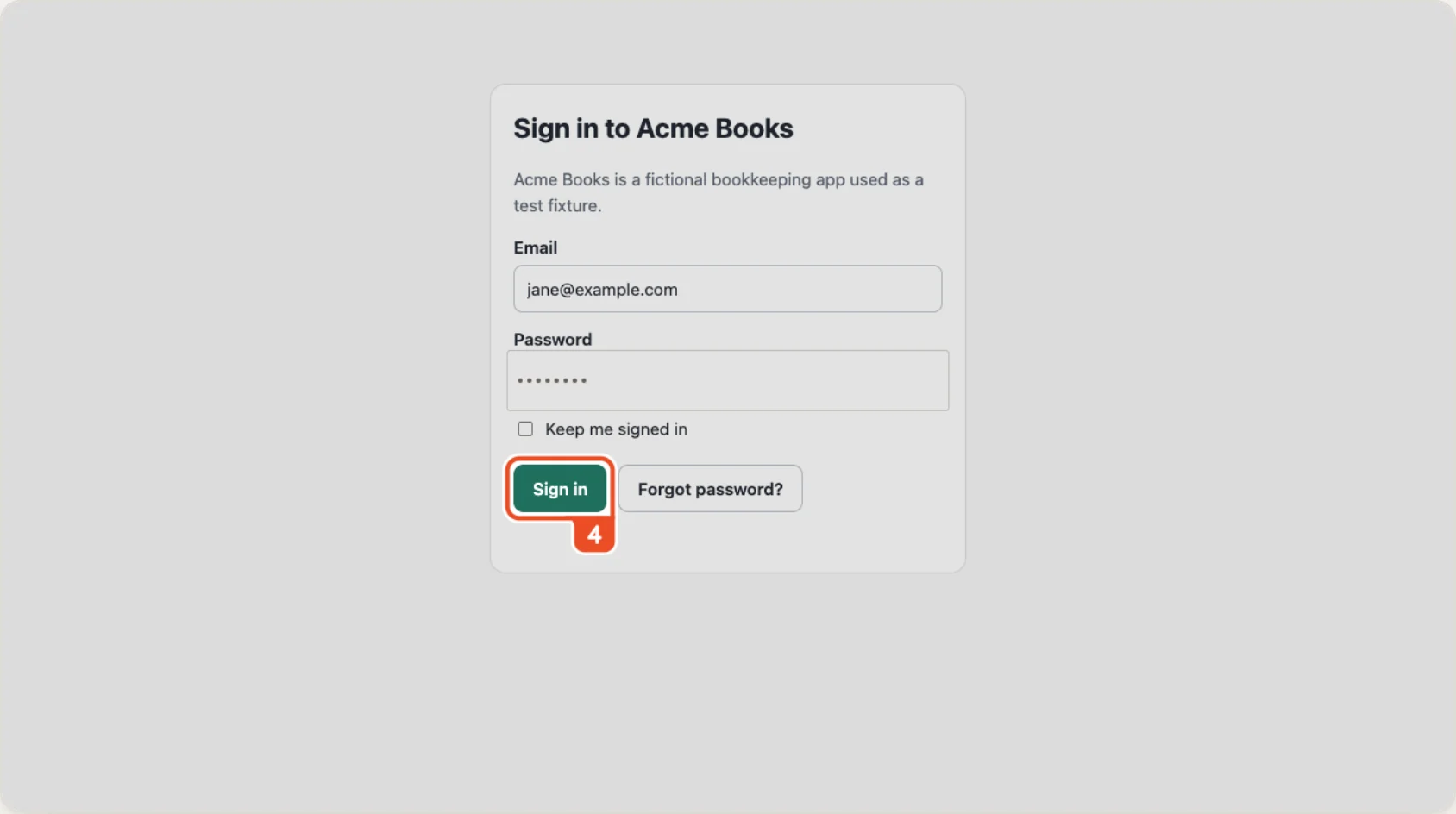
- Add a screenshot when the reader has to find something, and outline the target.
Filling the steps section from a recording
For a task done in a web app, the Steps section is the slow part: doing the task, taking a screenshot at each stage, cropping, marking and writing each line. Showsteps does that in one pass. Record the task in Chrome, and it produces numbered steps in the style above, with titles such as Click Export and Select Monthly in Billing period, and a screenshot with the target outlined.
Export as Markdown and you get a guide.md plus an images folder. Paste the steps under Steps in the template, keep the images beside the file, and fill in the other sections by hand. Those sections need someone who knows why the task exists, which a recorder cannot supply.
A filled-in example
Here is the same template for a small admin task, so you can see how much text each section needs. It is mock content. Note that the steps name the control exactly as it appears and say what should happen next.
# Reset a user's password in the admin console

Owner: IT support lead     Version: 1.0     Last reviewed: 2026-09-28
Applies to: IT support agents

## Purpose
A locked-out employee can sign in again within five minutes.

## Before you start
- You have the Support Agent role.
- You have confirmed the employee's identity by video call.

## Steps
1. Click Users. The user list opens.
2. Type the employee's email in Search, then press Enter.
3. Click the employee's name. Their profile opens.
4. Click Reset password. A confirmation dialog opens.
5. Click Send reset link. A banner reads Reset link sent.

## Check your work
- The profile shows Password reset requested with today's date.

## If something goes wrong
| Symptom | Likely cause | What to do |
|---|---|---|
| Reset password is greyed out | The account is managed by single sign-on | Ask the employee to use their company login page |
Level of detail
Match the reader. For an experienced person who needs a reminder, a numbered list without screenshots is enough. For a new hire on their first day, include a screenshot for every step where they must find something on screen. When unsure, write for the new hire and let the experienced person skim.
Test every set of instructions on someone who has not done the task. Watch where they stop. Those are the steps to rewrite.
Keeping it current
Put a review date in the header and an owner who is responsible for it. When a screen changes, re-record only the changed step if your tool lets you, or the whole task if it does not, and add a line to the change log. An old procedure that is wrong does more harm than no procedure.